Install with Helm
This topic describes how to use Helm to install releases that contain one or more Helm charts. For more information about the helm install command, including how to override values in a chart during installation, see Helm Install in the Helm documentation.
Prerequisites
Before you install, complete the following prerequisites:
-
The customer record in the Vendor Portal must have a valid email address. This email address is only used as a username for the Replicated registry and is never contacted. For more information about adding an email address for a customer, see Creating a Customer.
-
The customer must have the Existing Cluster (Helm CLI) install type enabled. For more information about enabling install types for customers in the Vendor Portal, see Manage Install Types for a License.
-
Create an image pull secret for the proxy registry and add it to your Helm chart. This ensures that the Replicated proxy registry can be used to grant proxy access to your application images for Helm CLI installations. To create the image pull secret and add it to your Helm chart, follow the steps in Use the Proxy Registry with Helm CLI Installations.
-
Declare the Replicated SDK as a dependency in your Helm chart. For more information, see Install the SDK as a Subchart in Installing the Replicated SDK.
-
If the Security Center (Alpha) is enabled for your account, add a unique HelmChart custom resource for each Helm chart in your release. The HelmChart custom resource is required to create the list of images that are scanned and reported on in the Security Center.
The following is an example HelmChart custom resource for a chart named
examplechartwith a chart version of1.0.0:apiVersion: kots.io/v1beta2
kind: HelmChart
metadata:
name: examplechart
spec:
chart:
# name must match the name of the chart
name: examplechart
# chartVersion must match the version of the chart
chartVersion: 1.0.0For more information about the HelmChart custom resource, see HelmChart v2.
Firewall Openings for Online Installations with Helm
The domains for the services listed in the table below need to be accessible from servers performing online installations. No outbound internet access is required for air gap installations.
For services hosted at domains owned by Replicated, the table below includes a link to the list of IP addresses for the domain at replicatedhq/ips in GitHub. Note that the IP addresses listed in the replicatedhq/ips repository also include IP addresses for some domains that are not required for installation.
For any third-party services hosted at domains not owned by Replicated, consult the third-party's documentation for the IP address range for each domain, as needed.
| Domain | Description |
|---|---|
replicated.app * | Upstream application YAML and metadata is pulled from For the range of IP addresses for |
registry.replicated.com | Some applications host private images in the Replicated registry at this domain. The on-prem docker client uses a license ID to authenticate to For the range of IP addresses for |
proxy.replicated.com | Private Docker images are proxied through For the range of IP addresses for |
* Required only if the Replicated SDK is included as a dependency of the application Helm chart.
Install
To install a Helm chart:
-
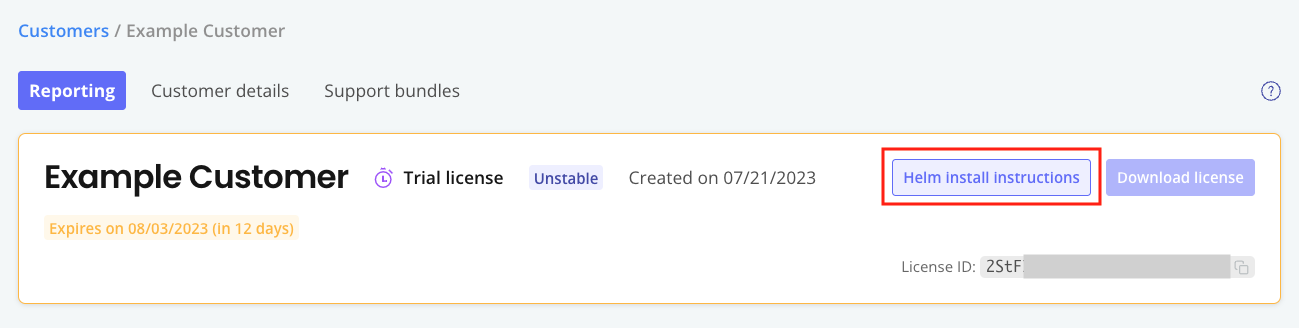
In the Vendor Portal, go to Customers and click on the target customer.
-
Click Helm install instructions.
 note
noteHelm charts marked with the
kots.io/installer-only: "true"annotation will not appear in the Helm install instructions. These charts are deployed only when using Replicated installers (Embedded Cluster, KOTS, and kURL). For more information, see HelmChart v2. -
In the Helm install instructions dialog, run the first command to log in to the Replicated registry:
helm registry login registry.replicated.com --username EMAIL_ADDRESS --password LICENSE_IDWhere:
EMAIL_ADDRESSis the customer's email addressLICENSE_IDis the ID of the customer's license
noteYou can safely ignore the following warning message:
WARNING: Using --password via the CLI is insecure.This message is displayed because using the--passwordflag stores the password in bash history. This login method is not insecure.Alternatively, to avoid the warning message, you can click (show advanced) in the Helm install instructions dialog to display a login command that excludes the
--passwordflag. With the advanced login command, you are prompted for the password after running the command. -
(Optional) Run the second and third commands to install the preflight plugin and run preflight checks. If no preflight checks are defined, these commands are not displayed. For more information about defining and running preflight checks, see About Preflight Checks and Support Bundles.
-
Run the fourth command to install using Helm:
helm install RELEASE_NAME oci://registry.replicated.com/APP_SLUG/CHANNEL/CHART_NAMEWhere:
RELEASE_NAMEis the name of the Helm release.APP_SLUGis the slug for the application. For information about how to find the application slug, see Get the Application Slug.CHANNELis the lowercased name of the channel where the release was promoted, such asbetaorunstable. Channel is not required for releases promoted to the Stable channel.CHART_NAMEis the name of the Helm chart.
noteTo install the SDK with custom RBAC permissions, include the
--setflag with thehelm installcommand to override the value of thereplicated.serviceAccountNamefield with a custom service account. For more information, see Customizing RBAC for the SDK. -
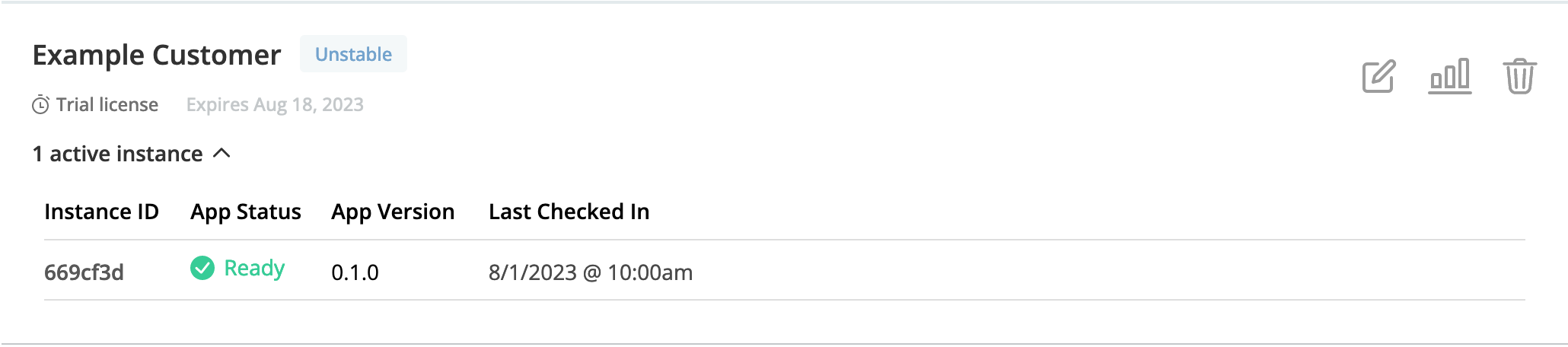
(Optional) In the Vendor Portal, click Customers. You can see that the customer you used to install is marked as Active and the details about the application instance are listed under the customer name.
Example: